How to sign a PDF on a Mac
You do not need a subscription e-signature service to sign a lease, a contract or a form. Here is how to do it on your Mac.
Option 1: Preview
- Open the PDF in Preview and click the Markup button.
- Click the Sign button and create a signature with your trackpad or camera.
- Place it on the page and save.
Option 2: Sheaf
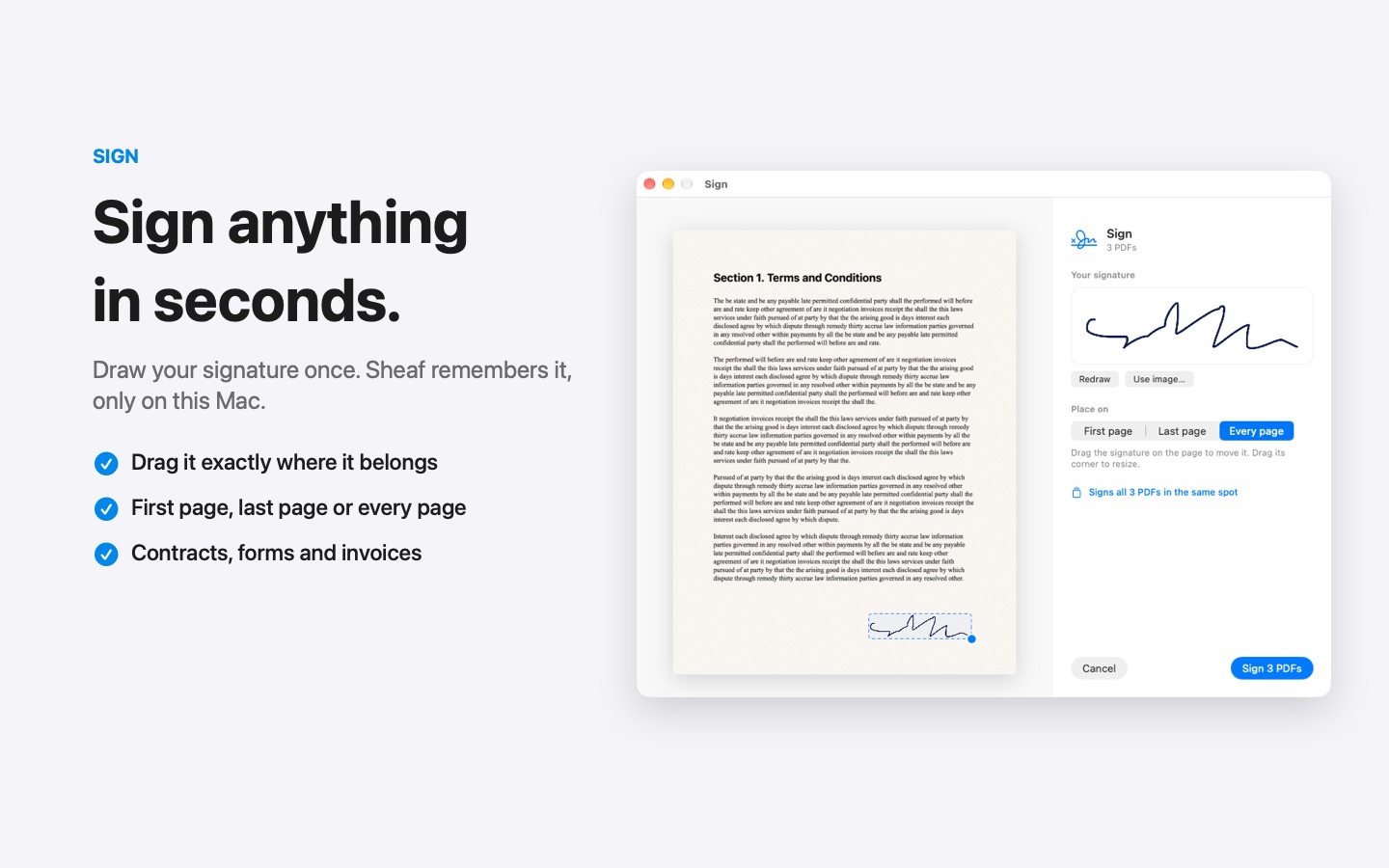
- Drag the PDF, pause, and choose Sign.
- Draw your signature once. Sheaf remembers it, only on this Mac.
- Drag it exactly where it belongs, on the first, last or every page.
Sheaf saves a new signed copy and never changes the original. Your signature is stored on your Mac and is never uploaded.
Download for Mac
Free 7-day trial · then one purchase, no subscription
Questions
Is a drawn signature legally binding?
In many countries a simple electronic signature is valid for everyday agreements, but rules vary. For regulated documents, check what the other party requires.
Where is my signature stored?
In Sheaf, only on your Mac. It is never uploaded.